- INSTALLATION HELP -
Installation "CTRLR":
The program supports the Windows 32/64 bit operating system and the Mac platform, as well as Linux. During installation, a VST.dll is also installed for integrating the program into a DAW.
Download Midi-Control Panel:
After downloading, all panels are available as a zip file and contain all required files: 1. Panel file ".panel" 2. Background graphic(s) ".jpg" 3. Tab(s) background graphic(s) ".jpg" 4. Controls - graphics for knobs, faders, buttons ".png" 5. Information file registration, usage and copyright ".txt & .docx" 6. Factory Presets List (if specified in description) ".txt" Extract the archive using the appropriate program (operating system or freeware)
BACKUP:
In case of error messages, crashes or setting up a new operating system, only a backed-up copy of the panel helps.
It is essential that you create a backup copy and save it on an external medium.
The first start:
When starting for the first time, the program window is located at the top right of the screen. Drag it a little larger with the mouse and then maximize the program window.
Setting up Midi-Control-Panel in CTRLR:
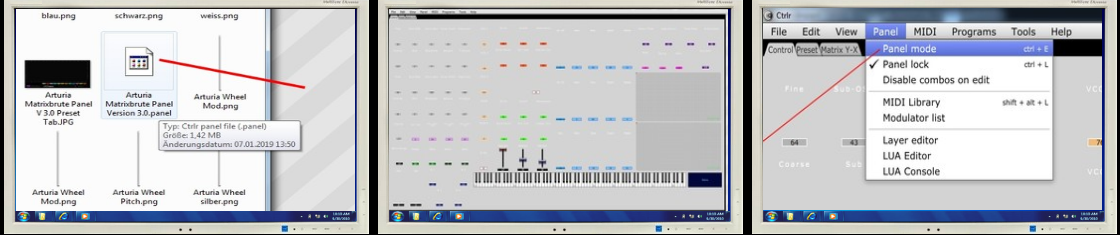
Start the program "CTRLR" and click on "open Panel" in the menu. Search for the folder you created beforehand, which contains all the unpacked files of the panel, and load the file with the extension ".panel" into the program, paying attention to the file path. Not much can be seen in the view yet, as the reference (link) to the graphic files is missing. Go to the menu under Panel and click on "Panel Mode", an editor window opens on the right.
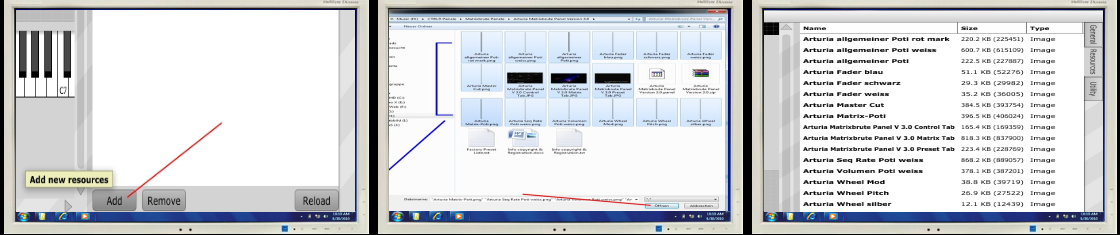
Click on the "Resources" tab at the top right edge of the window and then click on the "Add" button at the bottom of the window. Search for your panel folder again and now insert all graphic files into the panel editor window, either individually or by selecting all graphic files and clicking "open". A list must now be visible in the editor window, showing all required files. Compare the contents of the editor window with the contents of your panel folder. All graphic files must be present in the editor window. Accessory files (.txt) and the panel file are not required. Now leave the editor mode, go to the menu and deactivate "Panel-Mode".
The first functional check:
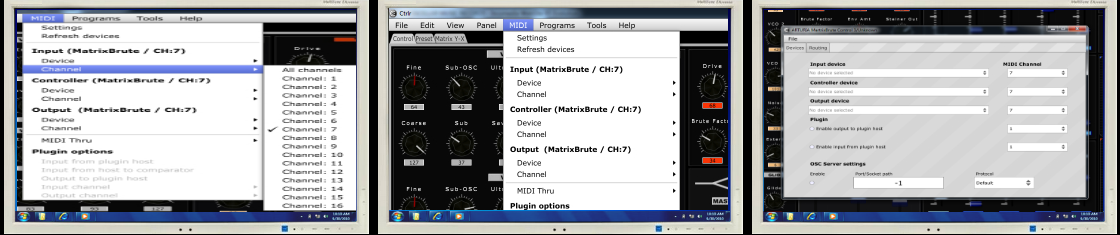
Close the program and start it again. If everything is perfectly visible, you can now also save it. Press "Save as" (path specification) and then close the program. Start the program again, all graphics and controls must now be visible. Now set up your interface and the used MIDI channel via the "Midi" menu. Also pay attention to the settings directly on the synthesizer: The MIDI channels must match and MIDI - Send and Receive must be activated, as well as external control.
Windows users:
The program creates a folder named "CTRLR" in the system directory. A kind of temporary buffering takes place here. File path: C/User/userNAME/AppData/Roaming/Ctrlr. The folders only become visible when the system settings are changed. Any change to the panel (controls, text notes, preset renaming) is permanently stored here, even without saving when closing the program, like a temporary file. These files can be deleted without any problems if necessary or desired. However, this has the consequence that the panel may have to be set up again.
Mac users:
Just as described in the "Windows users" section, CTRLR also works on a Mac. Here you can find the preference files of Ctrlr under: MacOs/Users/userNAME/Library/Preferences/Ctrlr.
Updates / Upgrades:
No matter which operating system is used: If an update or an upgrade is carried out, all files from these folders should be deleted.
Information / Error message:
As long as the "Save as" or "Save" option in the menu is not pressed, the original ".panel" file in your folder will not be overwritten. If crashes occur during operation due to an incorrect setting, close the panel under the "File" and "Close" menu. Confirm the prompt with "ok". Now go back to the menu and click on "open Panel" and open the original panel from the folder, taking the file path into account. This bypasses the automatic loading of the panel from the Roaming folder, the content of which will now be overwritten again by "restarting".
Start CTRLR, drag the window larger and maximize it, select "Open Panel" in the menu.
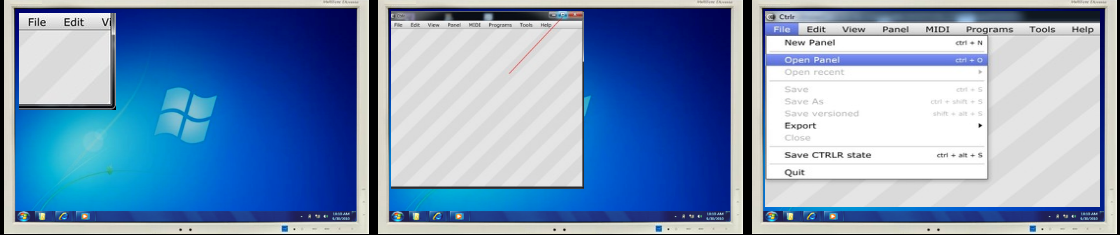
Select "Open Panel" in the menu, search for the file with the extension ".panel" from the unpacked data, the panel will be loaded.
On the right side, the editor window has opened, click on "Resources", no files are visible in the window yet.
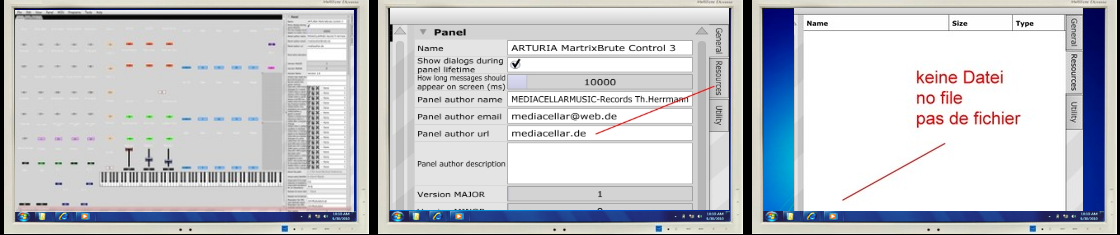
Click on "Add" at the bottom, search for the panel folder, select all graphic files and click open, all files should now be loaded in the window.
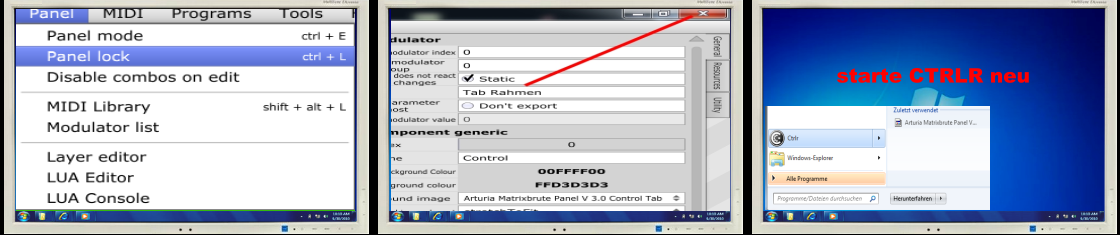
Close the editor window under the menu "Panel lock", exit CTRLR and restart CTRLR.
The panel is now fully displayed, go to "Midi" under the menu, select your MIDI interface.
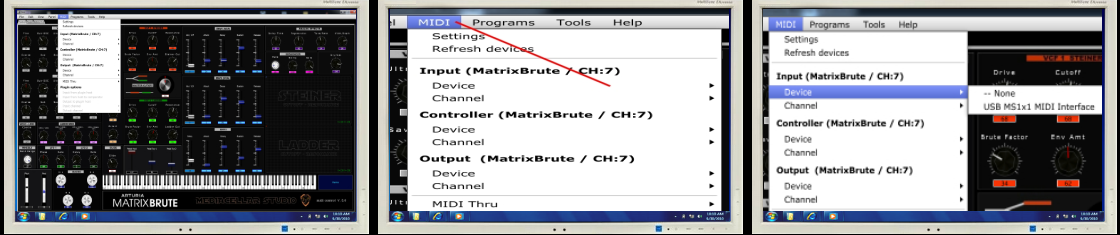
Now select the MIDI channel for your hardware to be controlled. Under "Settings", further adjustments are possible, such as routing within a DAW when the panel is used as a VST.